| | | | Hi , Welcome to the Tech Learning Collective Newsletter. | | | |
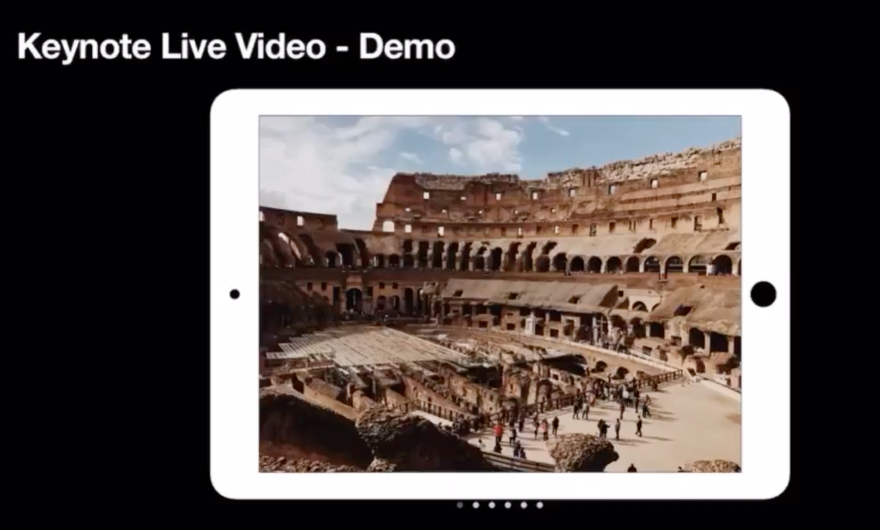
| | This week we are exploring Keynote Live Video!With its powerful tools and incredible effects, Keynote makes it easy to create amazing learning experiences. It is also a great tool to empower students to demonstrate learning in creative ways with drawing, animation, transitions, shapes, dynamic backgrounds and more. Did you know you can now add Live Video in Keynote? Make your very own greenscreen effect videos and still images without a greenscreen or greenscreen app. Simply layer live video over still images or get more creative and layer live video on the top of video! | |
|
| | |
|
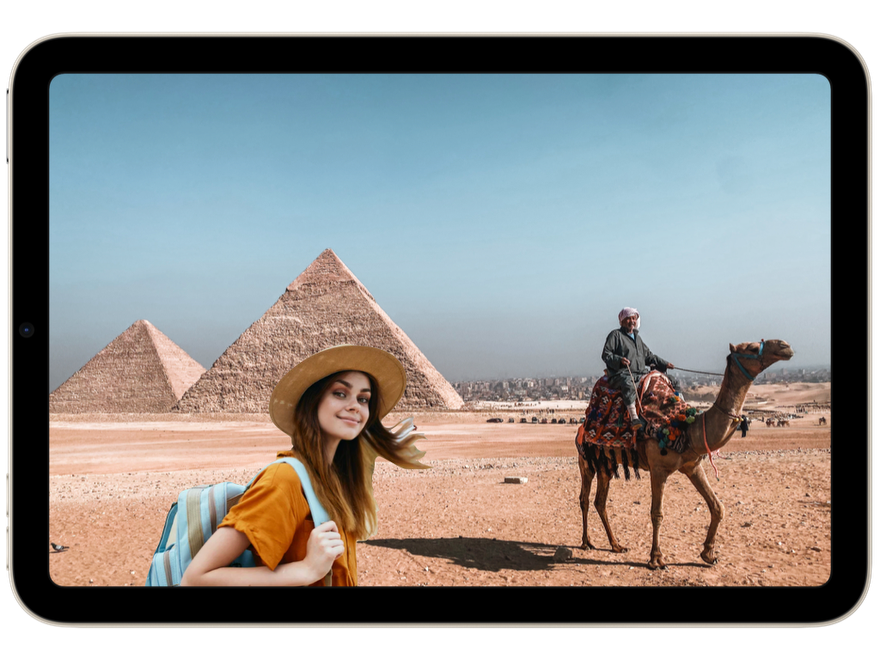
| | Visiting places they may only dream or read about, what do they see, hear, smell & how does being there make them feel! | | | |
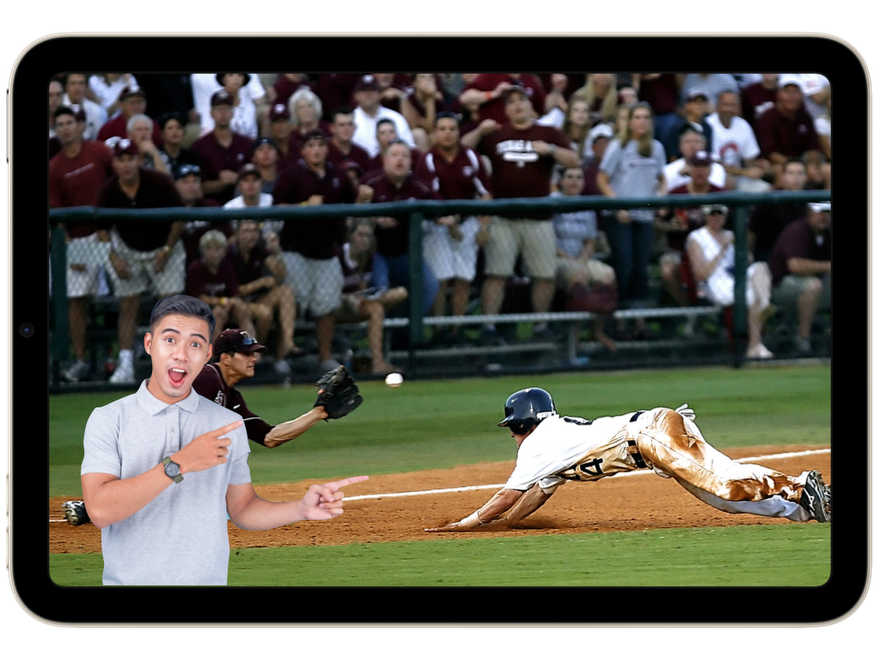
| | Attending a game or event where they can be the commentator or a loyal fan. | | | |
| | Exploring textures in their environment for products, prototypes or design challenges | | | |
| | Images sourced from Pexels.com | | | |
|
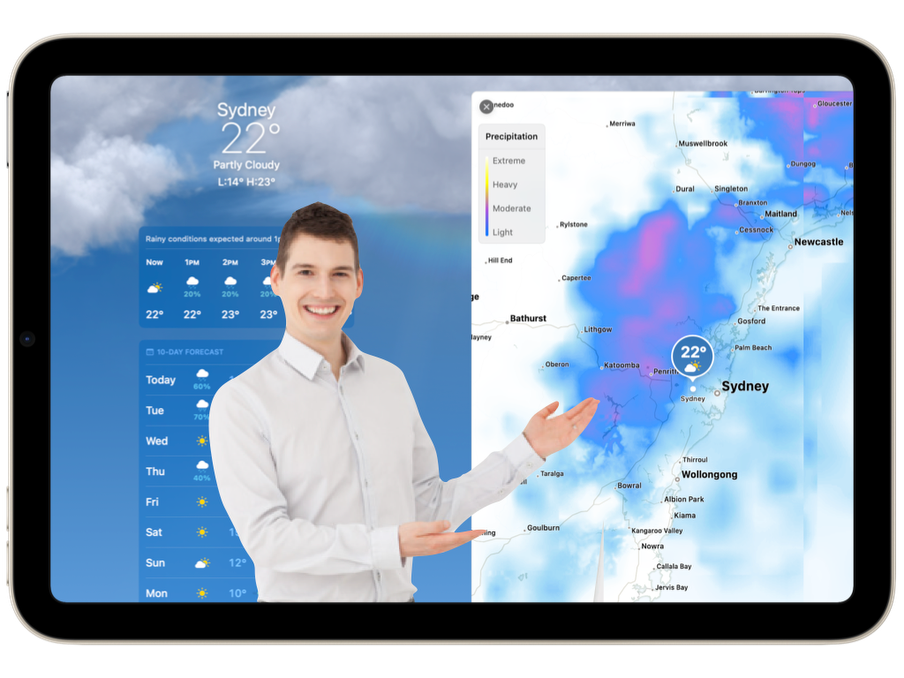
| | | Presenting the weather and explaining the amount of precipitation forecast in their local area using a screen recording or screenshot of Weather App | | | |
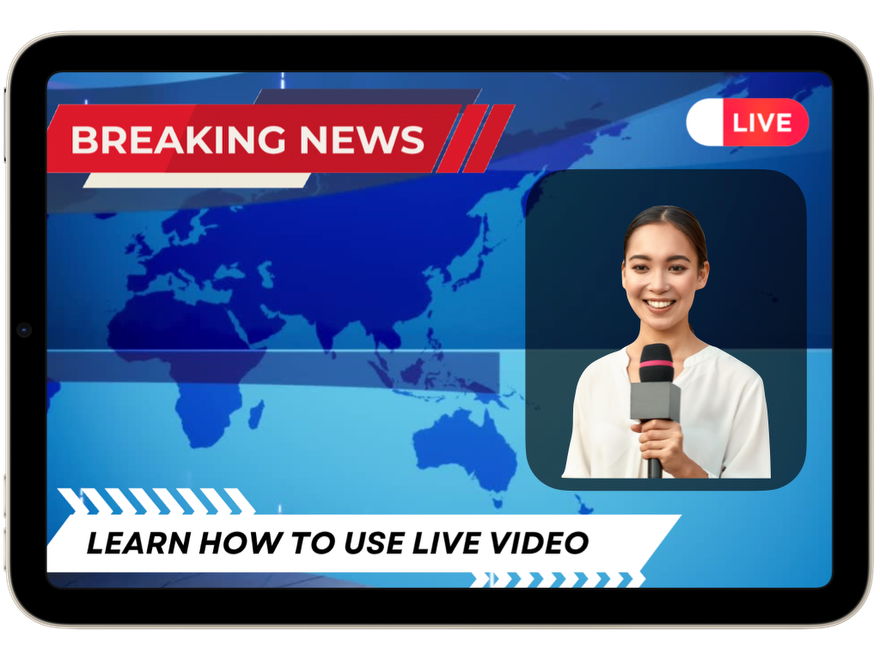
| | On scene reporting breaking news… a new invention, a mystery, a wild car chase! | | | |
| | Touring the city of New York using a screen recording of flyover of New York in Maps App | | | |
|
|
|
|
|
| | | | | Click here to learn how to add live video in Keynote on iPad Click the image to the left for a quick demo. ⬅️ | | | |
|
|
|
|
|
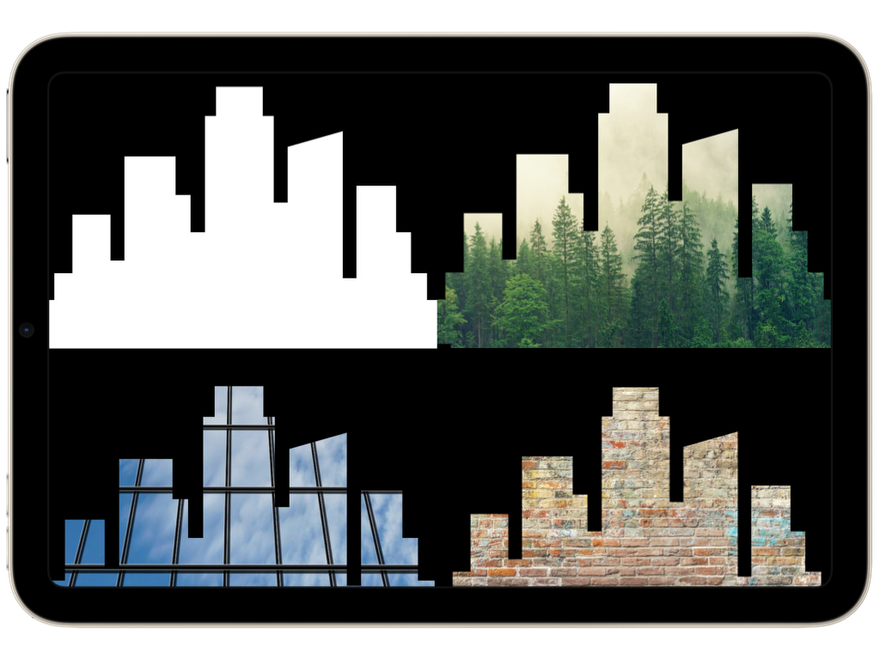
| | Combine shapes to make a StencilIn Keynote you can create a new shape by combining one shape with another shape. Using the subtract tool you can subtract shapes from other shapes or remove the overlapping area between two shapes. This makes the perfect stencil that you can then use on top of live video to bring shapes to life. Click here to learn how to combine shapes in Keynote on iPad. | | | |
|
| | |
|
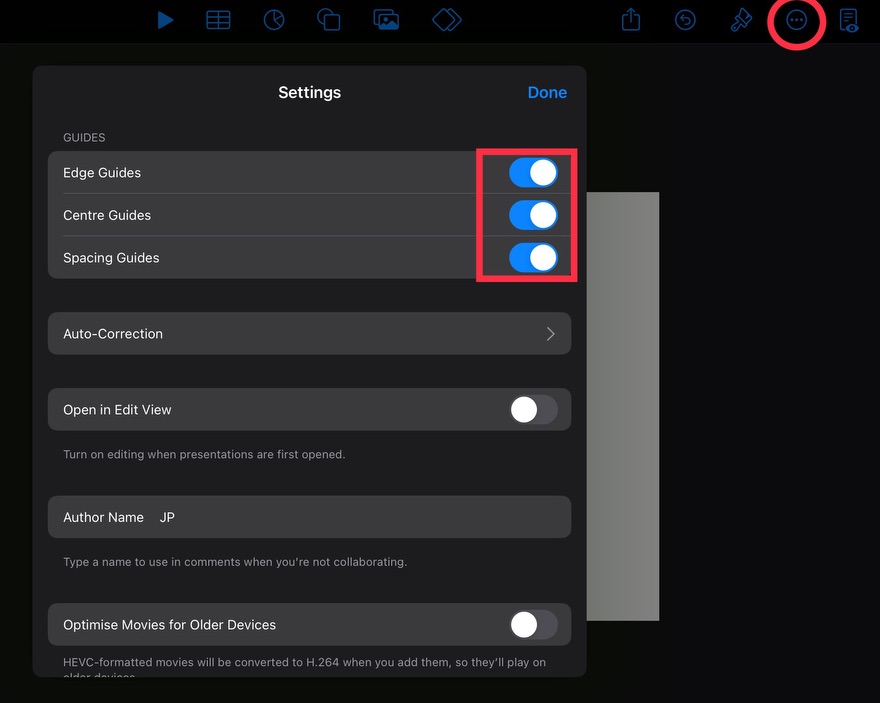
| | | | Tip: Keynote GuidesIf you want more freedom when moving shapes, text and images around in Keynote you can turn off the guides in Keynote settings. | | | |
|
| |
|
| | |
|
| | | | 1. Tap … , then tap Settings.
2. Turn off one or more of the following guides in the Guides section: Edge Guides: Appear when an object’s edges align with the edges of another object. Centre Guides: Appear when an object’s centre aligns with another object or the centre of the slide. Spacing Guides: Indicate when three or more objects are placed equally apart on a line. 3. Tap Done. | |
|
| | |
|
| | | | Tech Learning Collective is a team of passionate Apple Professional Learning Specialists and educators from Queensland who offer professional learning, insights, resources, and valuable tips for transforming learning with technology.
| | | |
|
| | |
|
|