| | | | Hi , Welcome to the Tech Learning Collective Newsletter. | | | |
| | · Did you know about these cool tips and tricks? · With each OS update on iPad, there are so many new tips and tricks to explore. As teachers, especially *end of term 2 teachers* 🤪🤯, there often isn’t enough time to explore these updates and take note of what could really impact us in the classroom. We thought that this newsletter might be a great opportunity to show you some of our favourites from the last few updates - just in case you missed them! | |
|
| | |
|
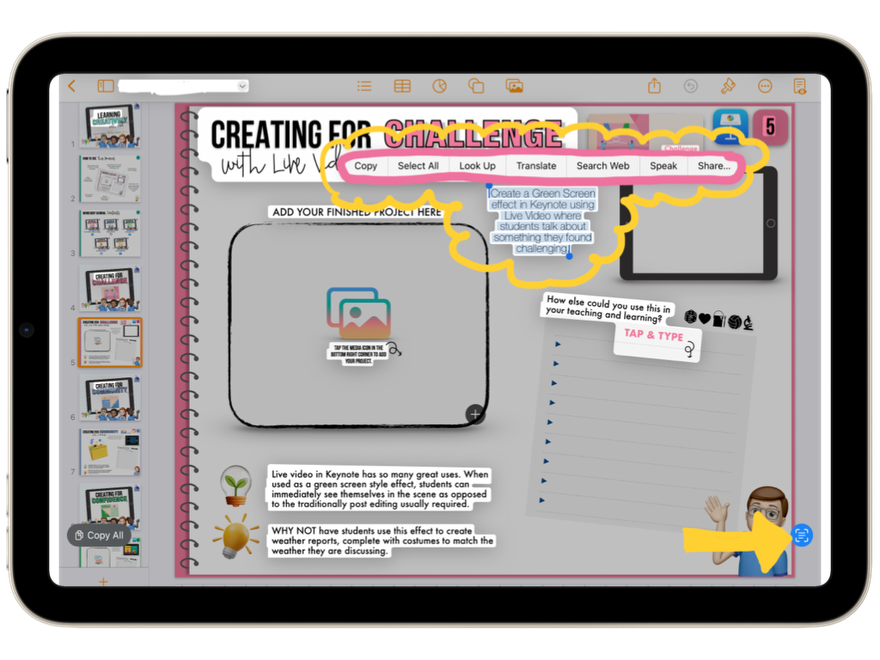
| | | | | Live Text - Photo & Video Open a photo, or pause a video that contains text. Tap the ‘Live Text’ icon - then touch and hold the selected text. You can now interact with this text, such as: Copy Text and paste in another document; Translate; Speak text; Convert (from pounds to kg for example) and so on. I have used this in the classroom to have pages from a book read to my students. Check this video for a quick example. The full Live Text guide can be found here. | | | |
|
|
|
|
|
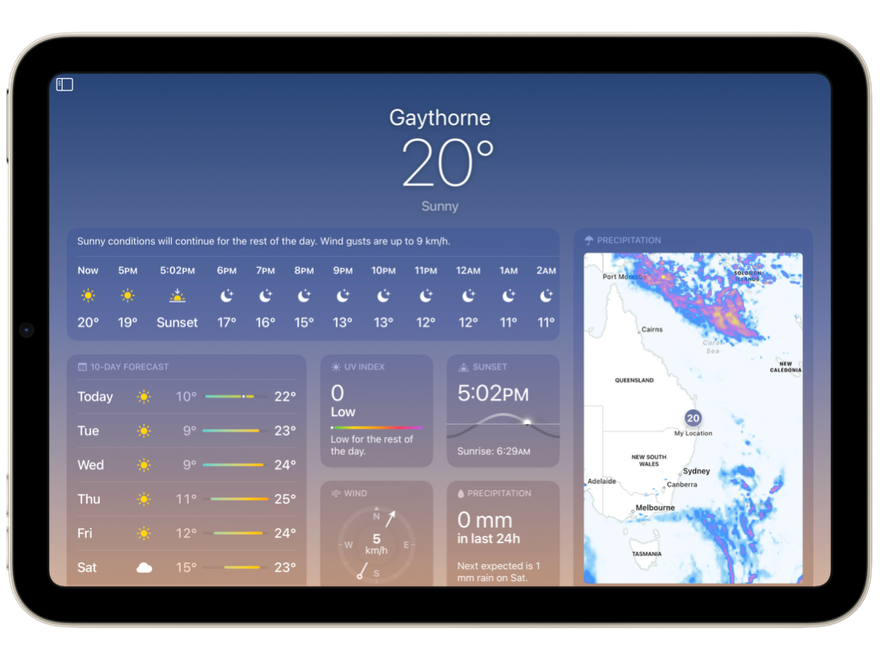
| | | | | Weather App on iPad The amazing Weather App has traditionally only been found on iPhone - but now you can access this on iPad. There is SO much data to explore in this app, perfect for units of work exploring Earth and Space Science. Click here to learn more about the Weather App on iPad. | | | |
|
|
|
|
|
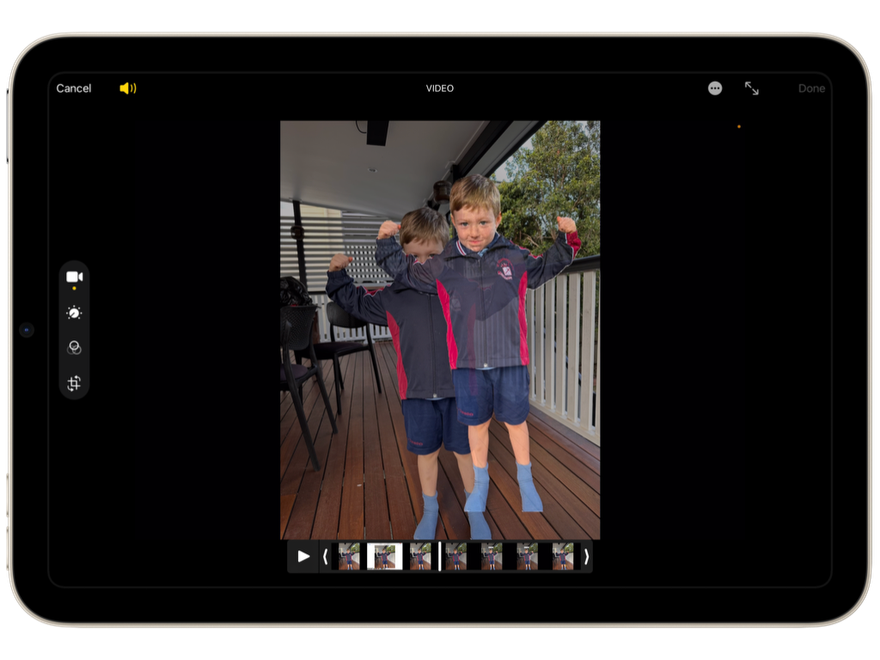
| | | | | Live Video Green Screen We have mentioned this one before, but it is just too good not to highlight again 🙌🏻 Using the Live Video feature in Keynote, you can create green screen projects - without needing paid apps or even a green screen! For a full ‘How To Video’ of this project - visit this blog post. | | | |
|
|
|
|
|
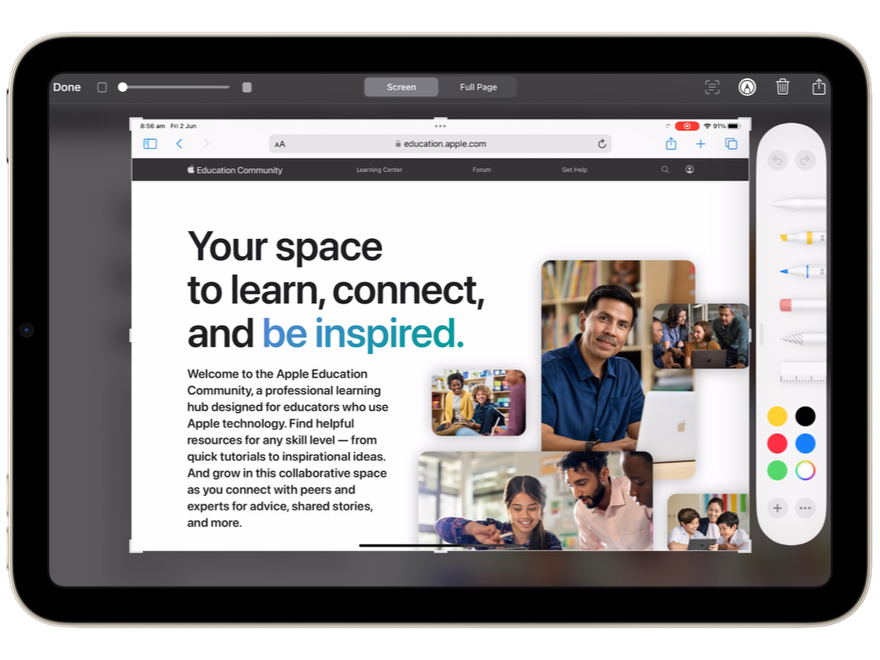
| | | | | Swipe Up Screenshot
Swipe your finger up from the bottom left hand corner of the iPad screen to take a Screenshot. Perfect for students with big chunky cases, or those who struggle with the fine motor skills needed to multiple buttons at the same time. Your Markup tools will also immediately appear ready for annotation. If this does not work, check your settings in accessibility/gestures to make sure it is turned on. Tap here to see this in action. | | | |
|
|
|
|
|
| | | | | Split Screen on iPad
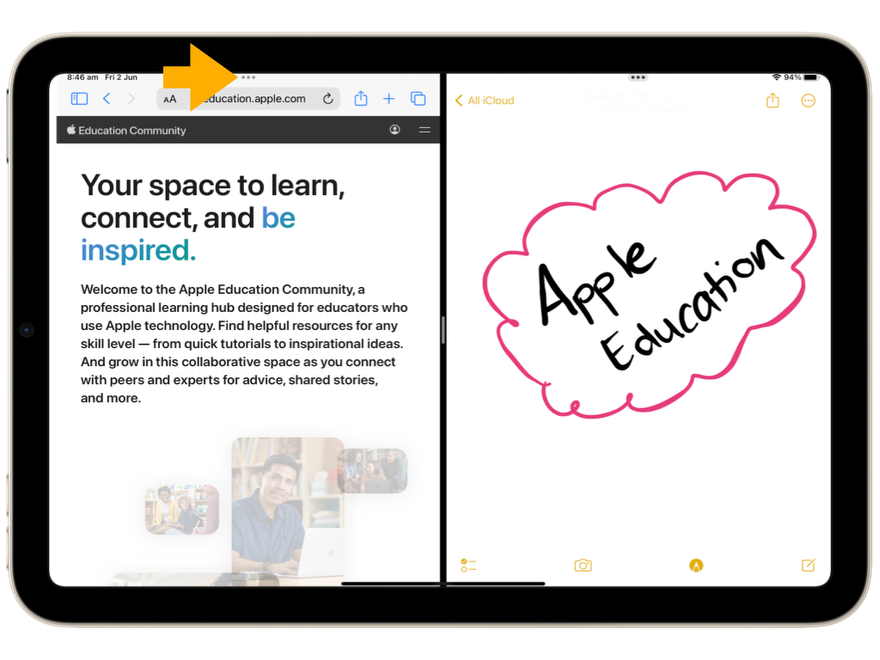
It is also now easier to set up Split Screen on your iPad. Open an app and look for the three dots in the top centre of your iPad screen (When in landscape orientation). Tap on the three dots (or simply swipe down from them) and choose ’Spot View’. Select the other app you want to use and off you go 🙌🏻 Click here to see this action. | | | |
|
|
|
|
|
| | | | | Lift Subject
This is another one we have covered before, but also one of our favourites! You can easily Lift the Subject from a photo (or paused video 🙌🏻) to use in a variety of projects (think animations, AR, Media Arts, GIFs and so on. Not just for people either, you can ‘Lift’ all sorts of items. Give it a go! 🤩 Tap here to view a quick demonstration to see how easy this awesome feature is! | | | |
|
|
|
|
|
| | | | We hope you find some of these tips and tricks as useful as we have!Until next week,
From the TLC Team 🌻 
| | | |
|
|
|
| | | | Tech Learning Collective is a team of passionate Apple Professional Learning Specialists and educators from Queensland who offer professional learning, insights, resources, and valuable tips for transforming learning with technology.
| | | |
|
| | |
|
|